
Ourdream AI App: Video Creation Right From Your Phone
Creating video content no longer requires sitting at a desktop. The ourdream ai app brings the same core idea behind Ourdream’s tools to a phone screen, letting people start a project during a commute or finish one from a couch. This guide covers what the app looks like, how to install it, and how updates roll out over time.
The ourdream ai app for video is built around a simple premise: fewer steps between an idea and a finished clip. Mobile video creation has usually meant switching between several apps — one for editing, another for effects, another for export. Ourdream AI tries to keep that process inside a single interface.
By the end of this guide, expect a clear picture of the app’s layout, the install process on both major mobile platforms, and what kind of updates to look forward to without overpromising specific features.
A Tour of the App’s Screens and Features
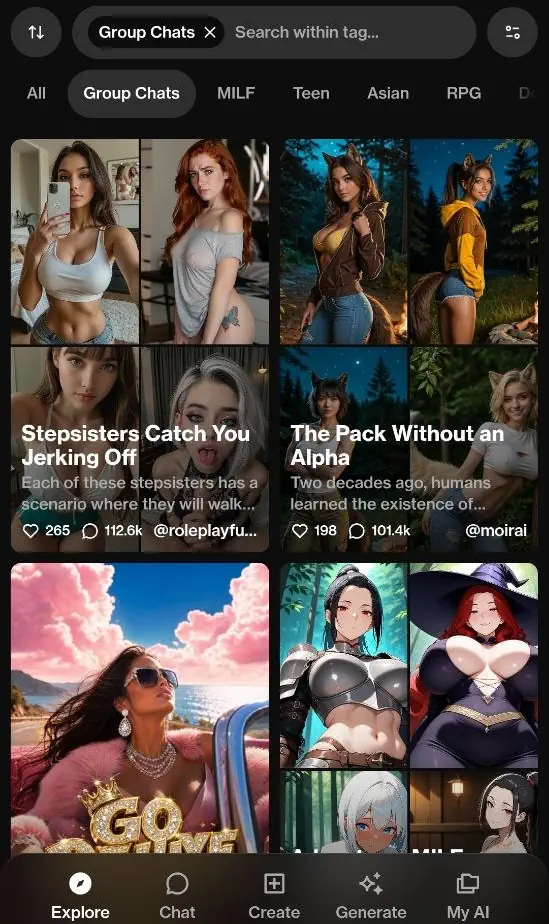
The app architecture consists of several key app screens for each step of the process.
- Home screen – main page with a list of recently worked projects and some quick start features.
- Chat screen – a conversational interface where prompts and instructions guide the generation process of Ourdream AI videos.
- Video creation screen – the working area for building, previewing, and adjusting clips before export.
Navigating from one section to another is done by means of a bottom or side menu, depending on the size of the device. The controls stay visible while keeping the screen clear; this is important considering that there is less space on a phone than on a computer screen.
All screens have connections to the account linked to the application, meaning that work started on the home screen continues all the way to the chatting and creation phases.
It is important to consider that the number of options that are being shown on a smaller screen is less than that on a large computer screen, so advanced settings can be accessed from menus or secondary panels.
Getting the App Installed
Installation follows the standard process for most mobile apps, whether on iOS or Android.
On iOS:
- Open the App Store and search for the app by name.
- Tap the download button and wait for the install to complete.
- Open the app and grant any requested permissions (camera, photo library, notifications).
- Sign in or create an account to begin.
On Android:
- Open the Google Play Store and search for the app.
- Select Download, then wait for installation.
- Launch the app and confirm the necessary permissions.
- Log in or set up a new account.
The ourdream app ios android availability implies that the core experience can be accessed through any mobile platform, although some differences may arise as far as the interface is concerned because each platform adheres to different design rules at the appstores.
Storage space and a stable internet connection matter for a smooth first launch, since initial setup may involve downloading additional resources depending on the device.
What’s New: Updates You’ll Actually Notice
The ourdream app update cycle follows a periodic schedule, with adjustments released over time to improve stability, performance, and usability across supported devices.
Updates typically include:
- Bug fixes and performance improvements.
- Interface refinements based on user feedback.
- Adjustments to notifications and background behavior.
It would be incorrect to talk about a set roadmap that includes all of the future functions of the app. There are no definite future updates mentioned, but the pattern of updates is definitely aimed at keeping the app modern.
Having notifications activated will definitely be the best way to find out about any update of the app, as updates are usually sent through the app or the app store.